Encryption in Culacc, explained without the jargon
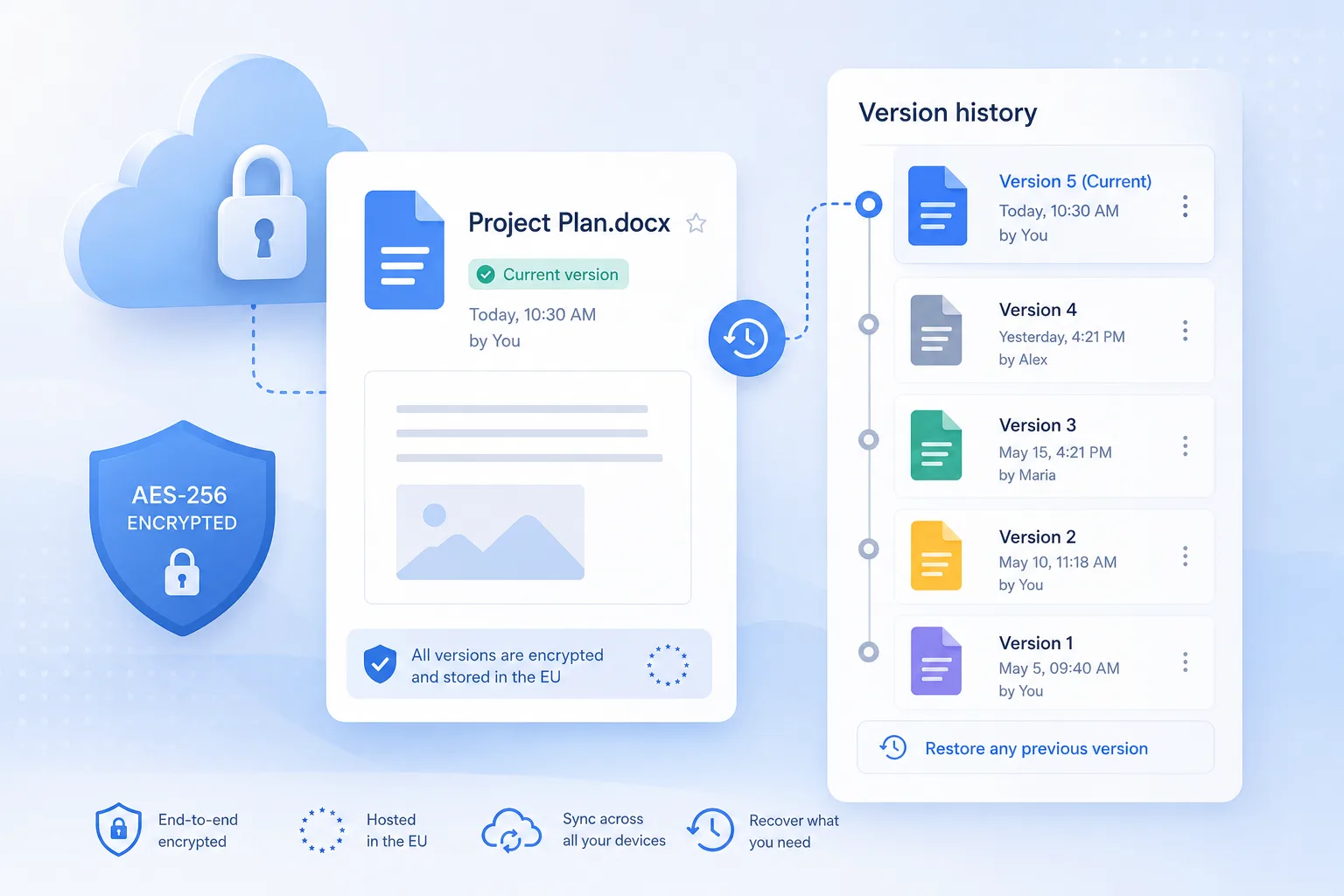
Imagine you're going on holiday and you want to leave your passport and some cash somewhere safe. You could put them in your kitchen drawer. Or you could lock them in a safe. The drawer is convenient — anyone in the house can grab the passport if they need it — but it's also wide open. The safe is the opposite: a bit of effort to open, but nobody gets in without the key.
Encryption is the digital version of that safe. It takes a file — a photo, a PDF, anything — and scrambles its contents into what looks like random gibberish. To anyone who doesn't have the key, that's all they ever see. Only someone with the key can unscramble it back into the original file.
This post explains how Culacc protects your files, in three levels of strength, and what each one is actually doing. You don't need to know anything about encryption to follow along.
What encryption actually is
Let's start at the beginning, because the word gets thrown around a lot.
Take a sentence. Say, "Meet me at the cafe at 3pm." If you wanted to send that to a friend without anyone else being able to read it, you could agree on a simple rule with them: shift every letter by three places in the alphabet. A becomes D, B becomes E, and so on. You'd write down "Phhw ph dw wkh fdih dw 3sp" and send it. Anyone intercepting the note sees nonsense. Your friend, knowing the rule, shifts every letter back by three and reads the original.
That's the basic idea of encryption. The original message is the real thing. The scrambled version is what gets sent or stored. And the key is the secret that lets you scramble and unscramble.
Real encryption works on the same principle, but with rules a million times more complicated than "shift by three." So complicated that the fastest computers in the world, given the lifetime of the universe to try, couldn't guess the right one. The whole game is in who has the key.
Level one: the protection that's always on
Every file you upload to Culacc is automatically scrambled before it's stored on our servers. This happens whether you ask for it or not. You don't need to turn it on, and you can't turn it off — it's just there.
What this protects against is the kind of risk you can't really do anything about yourself. If someone broke into our data center and stole a hard drive, they wouldn't get your photos and documents — they'd get scrambled gibberish. If a hacker found a way to download files from our storage without going through our normal security, same thing.
The honest tradeoff at this level is that Culacc holds the key. We have to, because we need to be able to show you your files when you log in. So while a thief can't read your data, technically we could — and if a government legally demanded it, technically we'd have to comply.
This is the same level of protection you get from Google Drive, Dropbox, iCloud, and almost every mainstream cloud service. It's not bad. It's just not the strongest thing possible.
If you want to go further — to where nobody, including us, can read a file — Culacc has two more options.
Level two: locking a single file with your own password
When you go to upload a file, there's a little lock icon next to it. Click that, and you can encrypt the file with a password you choose yourself.
Here's what changes. Before the file leaves your browser, it's scrambled using your password as the key. The scrambled version is what gets uploaded to us. We see only the gibberish. We never see your password, and we never see the original file.
When you want to open the file later, you type the password again. Your browser unscrambles the gibberish back into the real file, right there on your computer. We don't participate in this at all — the password lives only in your head, and briefly in your browser while it's being used.
This is much stronger than the default. Now even Culacc can't read your file. If our servers were stolen, hacked, or legally compelled to hand things over, all anyone would get is gibberish that needs a password we don't have.
There's a catch, and it's important: if you forget the password, the file is gone. Not "gone until you contact support." Gone forever. There's no reset button, no security questions, no recovery email. We literally cannot help, because we don't have what's needed to help. This is the price of the stronger protection — you've taken full responsibility for the key.
Level three: encrypted folders
One file with one password is fine for the occasional sensitive document. But what if you have a whole folder of things that all belong together — say, copies of your tax returns going back five years? Setting a different password for each file would be miserable. Setting the same password on each file by hand isn't much better.
Encrypted folders solve this. You create a folder, pick one password for it, and from then on every file you put in it is automatically encrypted with that one password. Open the folder once, type the password once, and now you can read, edit, upload, and download everything inside as if it were a normal folder.
Behind the scenes, the folder has its own special key — generated randomly the moment the folder was created. Your password isn't directly doing the scrambling. Instead, your password is what protects the folder's key, and the folder's key is what scrambles the files. This sounds more complicated, but the practical effect is simple: you type your password once, and then everything inside the folder just works.
From a security standpoint, encrypted folders are as strong as single-file encryption. Culacc cannot see what's inside an encrypted folder. If we wanted to, if we were forced to, if our entire database was leaked — all of it stays gibberish without your folder password.
And the same warning applies: forget the folder password and the contents are unrecoverable.
The vault: one password to manage them all
Here's the obvious problem with everything above. The whole point of doing your own encryption is that only you hold the keys, which means the burden of remembering them is entirely on you. One folder, fine. Five folders plus a handful of individually encrypted files? Now you have six passwords to remember, and remembering passwords is something humans are notoriously bad at.
The vault is Culacc's solution. It's a separate, locked container — protected by one master password — that stores all your other passwords for you. You can also keep other secrets in it: passwords for websites you use, private notes, bank card details, recovery codes, whatever you want kept safe.
Think of the vault as a digital safe that holds the keys to other safes. You only have to remember the password to the big one. Once you unlock it, everything inside is available — including the passwords for your encrypted files and folders. You click an encrypted file, the vault hands over its password automatically, and the file just opens. No more typing the same password over and over.
The vault itself is protected the same way encrypted folders are. Your master password is what scrambles its contents, and we store only the scrambled version. We cannot see what's in your vault, ever. If you save a hundred passwords in there, those hundred passwords exist for us only as one big block of gibberish.
And yes, the same warning: forget your master password and the vault is permanently locked. Write the master password down somewhere physically safe. Use a password manager. Tape it inside a book at home. Whatever works — just don't lose it.
How long does the vault stay open?
When you unlock the vault, it stays open while you're using Culacc — moving between pages or settings doesn't lock it. When you close the browser tab, it locks again automatically. The unlocked vault never gets saved to your hard drive; it lives only in the memory of the browser window you're currently using.
If you share a computer or work in public places, you can change this. Inside the vault's settings, there's an "auto-lock" option:
Never, until you close the tab. The default. Most convenient, fine on your own computer at home.
After five, fifteen, or thirty minutes of doing nothing. If you walk away from your laptop, the vault closes itself.
The moment you switch to another browser tab. The most cautious option — every time you check email or look at the news, the vault locks. You'll type your master password a lot, but nobody walking up to your unattended laptop gets in.
Pick whichever fits how and where you use Culacc.
What this protects you against
With encrypted folders and the vault, you're protected against a lot of scary things that genuinely do happen in the real world.
A data breach. Big companies get hacked. Sometimes their entire customer database leaks online. If that ever happened to Culacc, the encrypted files and vault contents would be unreadable to whoever stole them — they'd have piles of gibberish and no way to turn it back into anything useful.
A nosy employee. Even at companies with good intentions, there are employees with database access. With your data encrypted under a password we don't have, even someone with full administrator access at Culacc can't read your encrypted folders or vault contents.
Legal demands. Sometimes governments — including foreign ones — try to compel cloud companies to hand over user data. If we got such a demand for an encrypted folder, we'd be handing over gibberish. We can't unlock what we can't access.
Sharing accidents. If you accidentally share a link to an encrypted file with the wrong person, they still need the password to open it. The link alone is useless.
What this doesn't protect you against
Strong encryption is powerful but not magic. There are situations it can't help with, and being upfront about them is more useful than pretending otherwise.
It doesn't protect against a virus on your computer. If something on your device is recording your keystrokes, it'll capture your master password the moment you type it, and from there it can open your vault. Keep your computer clean, keep your operating system updated, and be careful what software you install.
It doesn't protect against someone walking up to your unlocked computer. If your vault is open and you've left your laptop on the kitchen table while a friend's kid plays around with it, the encryption can't help. Use the auto-lock options. Lock your screen when you step away.
It doesn't protect against someone looking over your shoulder. Once a file is open and on your screen, it's a file on a screen. The encryption did its job getting it there safely; after that, it's just a document.
And it doesn't protect against forgetting your password. We've said this several times because it's the single most important thing to understand. There is no recovery. Plan accordingly.
So what should you actually do?
For most people, the right approach looks something like this. Let the default encryption do its work for everything — it's automatic and you don't have to think about it. For the few things that are genuinely sensitive (financial records, copies of ID documents, anything you'd really hate to leak), put them in an encrypted folder. Set up the vault so you only have to remember one master password instead of many. Write that master password down somewhere physically safe — a piece of paper in a drawer at home is fine, a password manager is better.
After that, mostly forget about it. Use Culacc the way you'd use any other cloud storage. Open files, share things, sync with your computer. The encryption is doing its work in the background, on every file, every folder, every page load.
The whole point of building strong encryption properly is that, once it's set up, you don't have to think about it. Your files are safe in ways most people never get from their cloud provider — and you didn't have to become a cryptography expert to make that happen. That's the deal.
Encrypted by default. EU-hosted. No US data routing.
Start with Culacc